
Explain how to automate workflows with Make.com.

Make.com Automation Tutorial: How to Automate Repetitive Marketing Workflows
A make.com automation tutorial is useful when your team is stuck doing the same data tasks over and over. Marketers and analysts often spend too much time copying form responses into spreadsheets, sending manual follow-ups, and moving data between tools just to keep reporting and operations running.
This problem usually shows up when your workflow spans several apps. A lead might come in through a form, need to be logged in Google Sheets, passed to another team, and then used in a reporting process. When those tools do not share data automatically, the result is scattered information, delayed follow-up, and inconsistent records.
That is why workflow automation matters. Make.com is a visual automation platform where you build workflows called scenarios. These scenarios connect apps, define a trigger, and then run the next actions automatically. Instead of repeating the same process by hand, you set the logic once and let it run.

Why Marketers Look for a Make.com Automation Tutorial
Most people searching for a make.com automation tutorial are not trying to build something overly complex. They usually want to solve a practical problem: reduce manual work, move data between tools, and create a workflow that runs reliably.
In marketing teams, common tasks often follow the same pattern:
- a form is submitted
- a spreadsheet needs updating
- an email notification should be sent
- a webhook triggers data movement
- different records need different paths
Make is built for this kind of process. A typical workflow pattern is simple: trigger → action → filter or router → test → activate.
Good automation starts by fixing one repeatable process, not by trying to automate everything at once.
A simple example is a form submission workflow. A Google Form response can trigger a scenario, send the data into Google Sheets, and then send a confirmation email. That kind of setup is easy to understand, easy to test, and useful in real marketing operations.
The First Steps to Build a Practical Workflow
The best place to start is with one repeatable task that touches multiple apps. Lead routing, form follow-up, and reporting cleanup are good examples because they happen regularly and usually involve manual copy-paste work.
From there, the basic setup is straightforward:
- choose the trigger
- add the next action
- test with real data
- review the execution log
- activate the scenario
Tools like Google Sheets, webhooks, filters, and routers are especially useful here because they help organize data movement and handle simple branching logic inside the workflow.
A Tool I Use for Automation Workflows
For automation, one of my favorite tools is Make.com.I use it to connect different tools and automate repetitive workflows — for example moving data between APIs, Google Sheets, and reporting systems.
How to Build a Simple make.com automation tutorial Workflow
Once you have picked one repetitive task, the next step is to turn it into a clear scenario. The easiest way to do that is to follow the same basic structure each time: trigger, action, filter or router if needed, test, and then activate.
A practical example is a form follow-up workflow:
- a Google Form response comes in
- the response is added to Google Sheets
- an email notification is sent
This works well because the logic is easy to follow and the result is immediately useful. Instead of checking for new responses manually and copying details into another tool, the workflow handles those steps automatically.
Step 1: Choose the trigger
The trigger is the event that starts the scenario. In marketing workflows, this is often one of the most common repeatable events:
- a form submission
- a new row in Google Sheets
- a webhook event
If you are new to automation, form submissions are usually the simplest place to start. They are predictable, easy to test, and often connected to lead capture or internal requests.
Step 2: Add the first action
After the trigger, add the next action that should happen every time. For many teams, that means writing the incoming data into Google Sheets so it can be reviewed, shared, or used later in reporting.
This is where automation starts removing copy-paste work. Instead of taking information from one tool and entering it into another by hand, the scenario moves the data for you.
Step 3: Add filters or routers only when needed
Not every workflow needs branching logic right away. A lot of simple scenarios work perfectly well with one path.
Filters and routers become useful when different records need different actions. For example, one type of incoming lead may need one follow-up path, while another should go somewhere else. The important thing is to keep the first version simple and only add branching after the main flow works.
Step 4: Test with real data
Testing matters because a workflow that looks correct still needs to work with actual inputs. Using a few real submissions or records helps you confirm that the scenario moves the right values into the right places.
After that, review the execution log to see what happened at each step. This makes it easier to spot missing fields, formatting issues, or logic problems before the workflow goes live.
Step 5: Activate the scenario
Once the trigger, actions, and test results look right, activate the scenario. From that point on, the workflow can run without the same manual intervention each time.
This is the main value of automation for marketers and analysts: not just saving a few clicks, but creating a process that runs more consistently.
Practical Workflows Marketers Can Automate
Most teams do not need a complex system to see value from Make. They usually need a few reliable workflows that remove repetitive admin work and help data move cleanly between tools.
Form submission to spreadsheet and email
This is one of the most practical setups for marketing operations. A form submission triggers the scenario, the response is added to Google Sheets, and an email notification is sent.
It is useful for lead capture, contact requests, campaign intake, or internal requests because it creates one record of the submission and adds an immediate follow-up step.
Google Sheets update to notification workflow
Another useful pattern starts when a new row appears in Google Sheets. That row can trigger an email notification or another downstream action.
This works well when Sheets is already being used as a lightweight operations layer for campaign tracking, lead management, or reporting prep.
Webhook-based data movement
Webhooks are helpful when another system needs to send data into Make in real time. Once the webhook event is received, the scenario can route that data into the next step of the process.
This kind of workflow is useful when your reporting or lead handling depends on timely updates across tools.
Lead routing with filters or routers
Lead routing is a common reason people look for a make.com automation tutorial. The incoming lead arrives, then filters or routers help decide where it should go next.
That helps teams avoid manual sorting and gives each type of record a more consistent path.
The best automation is usually the one that removes a task your team repeats every day.
Using Make in Reporting and Analytics Workflows
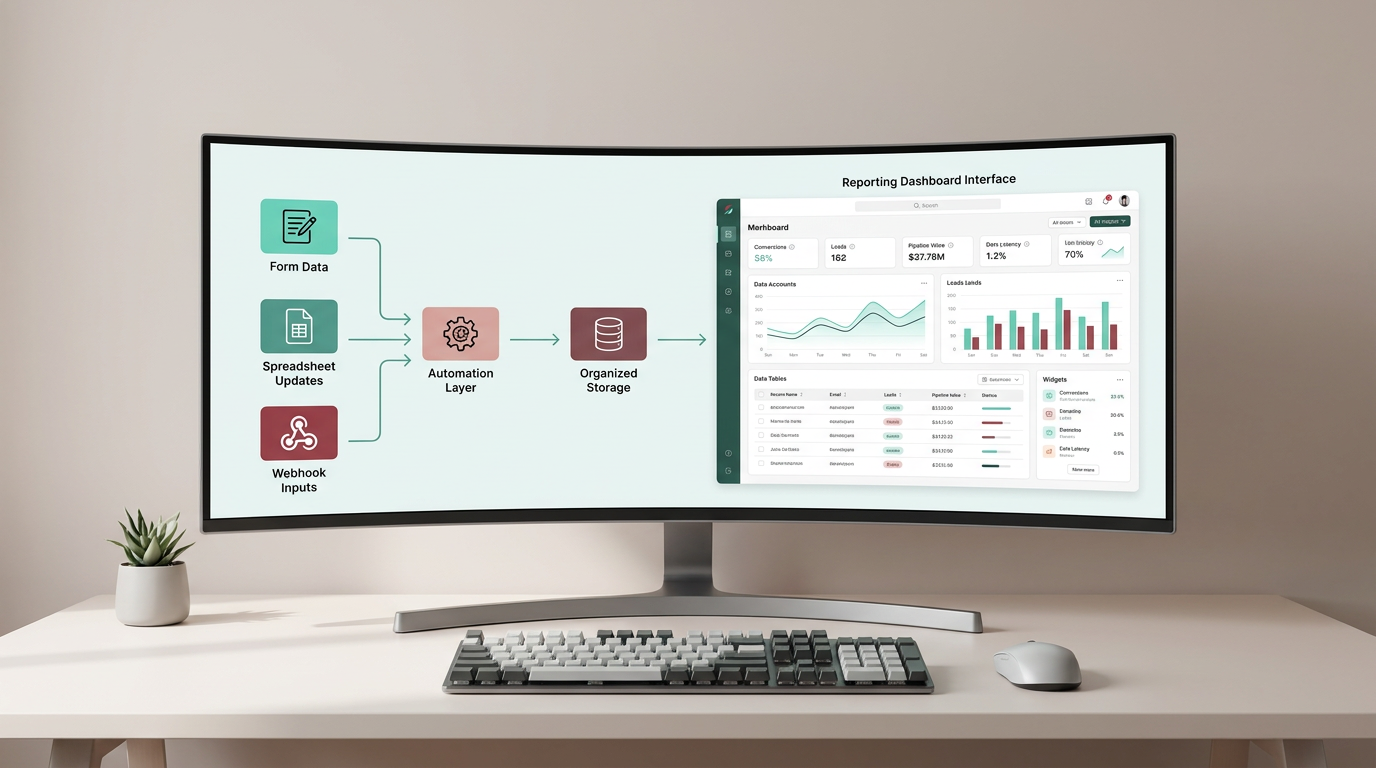
Make is often most useful when it acts as the automation layer between data collection and reporting. In that setup, one tool captures the data, Make moves or organizes it, and another tool is used for storage or visualization.
For marketers and analysts, this usually looks like a simple pipeline:
- data comes in through a form, spreadsheet update, or webhook
- Make moves the data into the right destination
- the reporting layer uses that organized data for dashboards or analysis
This approach helps separate workflow logic from reporting logic. Instead of mixing every step into one place, the scenario handles movement and process, while reporting tools focus on analysis and visibility.
Google Sheets as a working data layer
Google Sheets is often a practical place to store and review structured data, especially for smaller workflows. It gives teams a familiar place to check records, validate inputs, and prepare information for reporting.
In many marketing workflows, this makes Sheets a useful midpoint between data collection and dashboards.
BigQuery and dashboards in broader reporting setups
In larger reporting workflows, BigQuery may be used as centralized storage, while dashboard tools are used for visualization. In that kind of setup, Make supports the process by moving data between systems and helping keep the workflow organized.
Looker Studio can then sit on the reporting side when the underlying data is already structured somewhere else.
Combining multiple marketing data sources
Marketing teams often work with more than one data source. Analytics data, form data, spreadsheet data, and information from other marketing tools may all need to be aligned before reporting becomes useful.
That is why automation matters. It reduces the delay between collection and analysis and lowers the amount of manual cleanup needed to keep dashboards usable.
Practical Tips for Building Better Scenarios
Good automation is usually more about clarity than complexity. A simple scenario that runs reliably is more useful than a complicated one that is hard to test or maintain.
- start with one trigger and one action
- use clear names for scenarios and modules
- test with real data before activation
- review the execution log after testing
- add filters only after the core flow works
- keep field names consistent across tools
- document what each scenario does
These habits help especially when you are building workflows for marketing reporting. Data issues often come from inconsistent inputs or rushed setup, so keeping the first version simple makes it easier to trust the result.
Additional Tutorials and Resources
If you want to go further, it helps to keep learning from practical workflow examples and reporting use cases.
- tutorials on automating repetitive marketing workflows
- examples of connecting forms, spreadsheets, and email steps
- resources on organizing marketing reporting processes
- guides for building cleaner dashboard data flows
Conclusion
A make.com automation tutorial is most useful when it helps you solve one real workflow problem: moving data between tools without manual repetition. For marketers and analysts, that often means starting with a trigger like a form submission, sending the data to Google Sheets, adding a notification step, and then testing the scenario before activation.
From there, the same approach can be applied to lead routing, reporting cleanup, webhook-based workflows, and broader marketing data processes. The goal is not to automate everything at once. It is to build one reliable workflow at a time so your reporting and analytics setup becomes easier to manage, faster to update, and more consistent across tools.
If you are building dashboards or handling data across multiple marketing systems, start with the task your team repeats most often and turn that into your first scenario. That is usually the fastest path to a workflow that saves time and improves reporting quality.

Want to go further with your marketing workflows?
Tool I use for automation
For automation, one of my favorite tools is Make.com.
I use it to connect different tools and automate repetitive workflows — for example moving data between APIs, Google Sheets, and reporting systems.