
Show how to export GA4 data to BigQuery.

If you’ve tried setting up a bigquery ga4 export, you’ve probably noticed it’s not as simple as clicking one button in GA4. For many marketers, the bigquery ga4 export becomes frustrating because the setup lives across both Google Analytics and Google Cloud, with extra decisions around permissions, billing, and data timing.
This is a common problem when you want better reporting. GA4 standard reports are useful, but they summarize data and apply privacy filters. That makes it harder to answer deeper questions, join GA4 with other marketing sources, or build dashboards that are fully under your control.
The native export to BigQuery changes that. It sends raw, event-level data from GA4 directly into BigQuery, where you can query it, combine it with CRM or ad platform data, and use it in more flexible reporting workflows. For marketers and analysts, that usually means less manual reporting and more reliable dashboards.

Why marketers get stuck with bigquery ga4 export
Most setup issues happen for a few practical reasons.
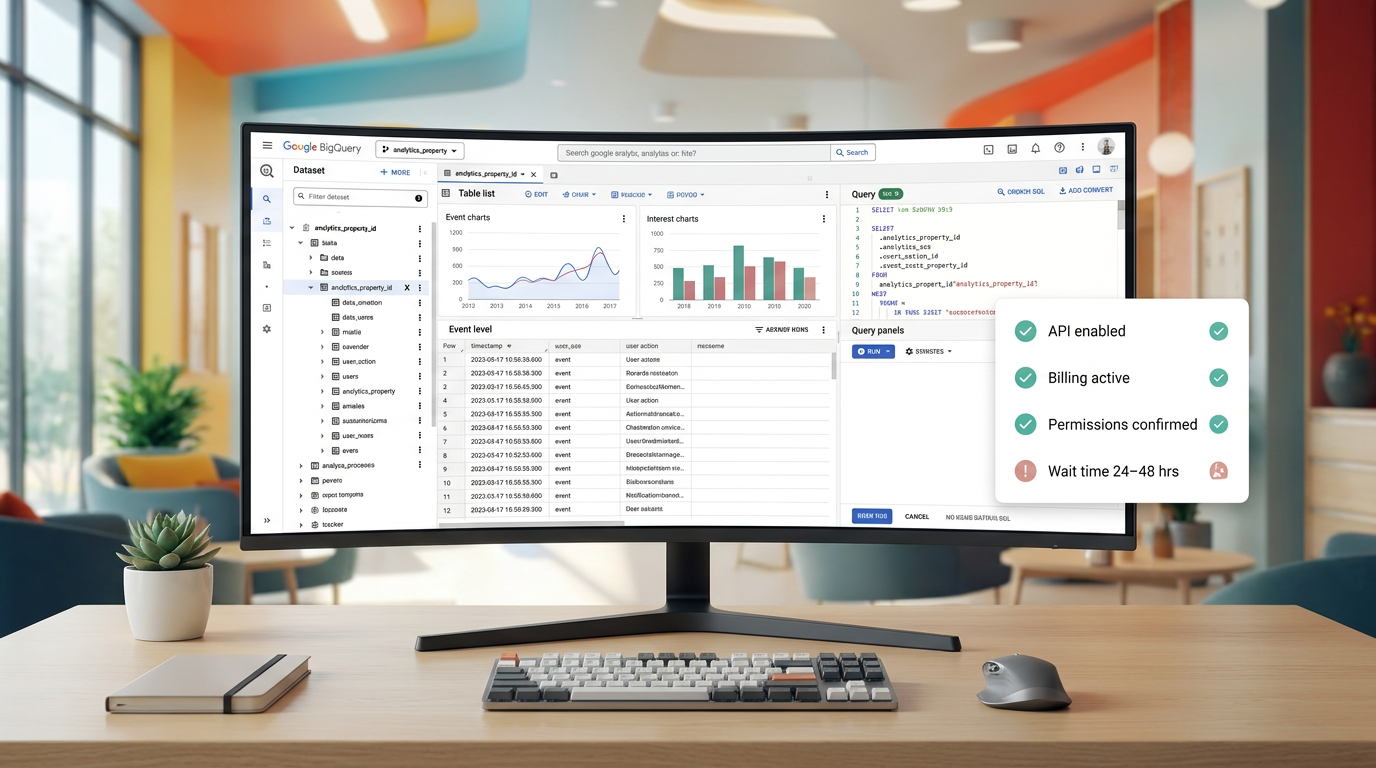
First, permissions are easy to miss. To create the link, you need Owner-level access in Google Cloud and Edit-level access in GA4. If one of those is missing, the connection will not work.
Second, billing creates confusion. BigQuery Sandbox is free, but it limits data retention to 60 days and does not support streaming. If billing is not enabled, marketers may expect near real-time exports and then wonder why nothing is showing up as planned.
Third, there is the timing issue. A new export does not start populating instantly. It can take 24–48 hours before data appears, which often leads people to think the setup failed when it is only delayed.
Good reporting usually starts with a clean data flow, not a prettier dashboard.
Another detail that matters early is data location. When you choose a BigQuery region, such as London or US, that choice is difficult to change later. If the wrong region is selected, fixing it may require deleting the link and dataset.
What the bigquery ga4 export workflow looks like
In practice, the setup starts in Google Cloud. You create or choose a project, enable the BigQuery API, and make sure billing is enabled if you need retention beyond 60 days or want streaming exports.
Then in GA4, you go to Admin, open BigQuery Links under Product Links, and connect the property to your Google Cloud project. During that process, you also choose the data location, decide which streams to include, and select the export frequency: daily or streaming.
Once that link is submitted, the next step is not to keep changing settings, but to verify the connection carefully and give the export enough time to begin populating.
A Tool I Use to Send Marketing Data into BigQuery
## Windsor.aiWhen I need to move marketing data from ad platforms into BigQuery or Looker Studio, I often use Windsor.ai.
It saves a lot of time because it can automatically pull data from platforms like Facebook Ads, Google Ads, TikTok Ads and send it straight into your reporting stack.
If you decide to try it, they also offer a 10% discount with the promo code gaillereports.
How to verify your bigquery ga4 export
After you submit the link, the most important step is to verify the setup without making unnecessary changes too early.
Start by waiting 24–48 hours. A new bigquery ga4 export does not populate immediately, so empty tables on day one do not automatically mean something is broken.
Then go to your Google Cloud project and check whether a dataset named analytics_{property_id} has appeared. That dataset is the clearest sign that the connection was created successfully.
If the dataset is missing, check a few basics:
- Confirm that you selected the correct GA4 property
- Confirm that your Google Cloud permissions are sufficient
- Confirm that the BigQuery API is enabled
- Confirm that billing is enabled if you expected streaming export
This verification step matters because many setup problems are not really data problems. They usually come from access settings, project configuration, or simply not waiting long enough for the first data to arrive.
Choosing streams and export frequency carefully
When you configure the link, GA4 lets you choose which web or app streams to include. This is worth reviewing carefully before you submit the setup, especially if your property contains multiple streams.
You can also exclude specific events. For marketers, this is useful when the property tracks a lot of low-value micro-events. If you are sending events for every small interaction, your export can become harder to manage and may push you toward the 1 million rows per day limit mentioned in the draft.
For export frequency, the choice is straightforward:
- Daily: exports processed events from the previous day once per day
- Streaming: creates near real-time tables for the current day and requires billing
If your team mainly uses BigQuery for regular reporting, daily export is often enough. If you need faster campaign monitoring, streaming is the option to review, as long as billing is enabled.
What to do with a bigquery ga4 export after setup
Once the export is active, the real value starts to show. Instead of relying only on standard GA4 reports, you now have raw event-level data in BigQuery that you can use in more flexible reporting workflows.
That opens up a few practical options for marketers and analysts.
Build dashboards in Looker Studio
One common workflow is connecting BigQuery to Looker Studio. This helps you build dashboards on top of your exported GA4 data instead of depending only on the GA4 interface.
This is especially useful when you want more control over what appears in a report or when you need dashboards that fit your own reporting structure.
Pull selected data into Google Sheets
For lighter reporting, you can use the BigQuery connector in Google Sheets to pull live data into a spreadsheet. That can be a practical option for teams that still work heavily in Sheets but want data coming from a more reliable source.
Instead of copying numbers manually from different reports, you can organize reporting around the exported data stored in BigQuery.
Use SQL for custom analysis
Another advantage of the native export is the ability to run custom SQL queries. This is helpful when standard reports do not answer the question clearly enough.
For example, you might want to analyze a specific user journey or filter results using custom dimensions. With the raw event data in BigQuery, those types of analysis become easier to structure than they are inside standard GA4 reporting.
Combine GA4 with other marketing sources
The research draft also points to a common next step: joining GA4 data with CRM or ad platform data. This is one of the main reasons teams set up a bigquery ga4 export in the first place.
When reporting lives across several tools, it becomes hard to build a complete view of marketing performance. BigQuery gives you one place to organize that data more cleanly and support more reliable dashboards.
Clean source data makes reporting much easier to trust.
Tools and workflows marketers can use
You do not need a complicated stack to make the export useful. A few simple workflows can already improve reporting quality and reduce manual work.
- Looker Studio + BigQuery: build visual dashboards directly from exported GA4 data
- Google Sheets + BigQuery: pull live data into spreadsheets for lightweight reporting
- SQL + BigQuery: answer custom questions that GA4 standard reports do not handle well
- Make.com: automate workflows that use data from BigQuery for alerts or sheet updates
- Marketing connectors: some tools such as Windsor.ai or Supermetrics can feed data into BigQuery, while native GA4 export remains the most efficient source for raw GA4 event data
For many teams, the best workflow is not the most advanced one. It is the one that keeps data organized, reduces manual reporting, and makes dashboard updates easier to maintain.
Practical tips to keep your bigquery ga4 export manageable
Once the setup works, a few habits can save time later.
- Exclude unnecessary events if your property tracks too many low-value interactions
- Choose the right region carefully because changing the BigQuery location later may require deleting the dataset
- Do not expect backfill because GA4 does not backfill historical data into BigQuery
- Enable streaming only when needed if near real-time reporting matters for your use case
- Verify the service account created during linking and make sure it has the BigQuery User role in GCP
The point is not to make the setup more complex. It is to avoid preventable issues that create confusion later, especially when several people use the same reporting environment.
Additional resources and tutorials
If you want to go further after the initial setup, it helps to keep a short list of related resources and tutorials for your reporting workflow.
- GA4 export setup instructions in your internal documentation
- BigQuery query examples for common marketing questions
- Looker Studio dashboard templates connected to BigQuery
- Google Sheets reporting workflows using the BigQuery connector
- Reference notes for permissions, billing, region choice, and service account checks
Conclusion
A successful bigquery ga4 export is less about clicking through the setup and more about getting the foundation right: permissions, billing, region selection, stream choices, and realistic expectations around timing.
Once the export starts populating, you move from summarized GA4 reporting to raw event-level data that is much easier to query, combine with other sources, and use in dashboards you control. That is what makes the setup worth it for marketers and analysts who want more reliable reporting.
If you are building dashboards, automating reports, or trying to connect marketing data in one place, this is a practical next step. Set it up carefully, verify it properly, and then use the exported data to create reporting workflows that are easier to trust and easier to scale.

Keep learning: take your GA4 BigQuery setup further
Tool I use for Looker Studio connectors
If you’re building dashboards in Looker Studio and need data from ad platforms, this is something I personally use quite often.
Windsor.ai connectors for Looker Studio let you pull marketing data directly into your reports so everything updates automatically.
If you decide to try it, they also offer a 10% discount with the promo code gaillereports.
Tool I use for marketing dashboards
A tool I’ve used many times for marketing dashboards is Supermetrics.
It helps pull data from different marketing platforms into tools like Google Sheets, BigQuery, or Looker Studio so your reports can update automatically.
