
Top Facebook Ads Connectors for Looker Studio – How to Choose the Right Looker Studio Connector

If you’re building marketing dashboards in Looker Studio, choosing the right connector for Looker Studio makes a massive difference. I recorded a short video walkthrough where I compare the most popular Facebook Ads connectors for Looker Studio and explain which one I use for client projects and my free templates. If you prefer a quick visual guide, watch the tutorial and follow along:
Step 1: Inventory your data sources — start by listing everything you need
Before you even open a pricing page, build a one-line inventory of all data sources you plan to use. I always create this list in Google Sheets or a Google Doc so I can share it and update it as my stack grows. Include every platform you use today and any you might add soon — for example:
- Facebook Ads (obviously)
- Instagram Insights
- Google Ads
- Shopify (store data)
- Klaviyo or Mailchimp (email)
- Pinterest, TikTok, AdRoll, Bing
This first step helps you avoid a common trap: picking a connector for Looker Studio that supports only Facebook Ads today, then discovering you can’t add Shopify or Klaviyo later without switching providers. Once you know your stack, you can search connector catalogs with confidence for the specific Looker Studio connector capabilities you need.
Step 2: Search provider catalogs — which connectors for Looker Studio support your required platforms?
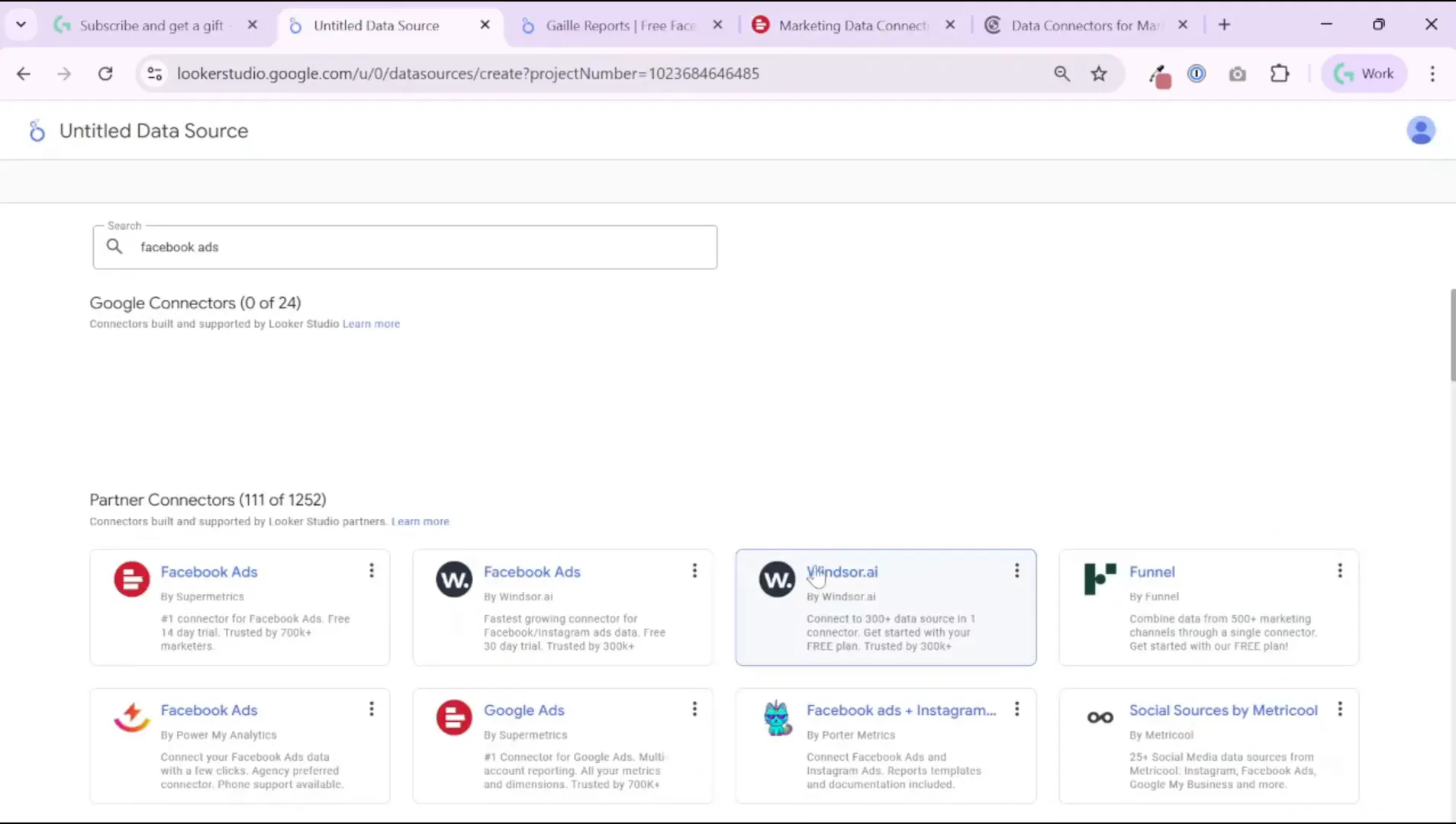
With your inventory in hand, visit the websites of connector for Looker Studio providers and check their data source lists. Providers differ widely in how many platforms they support and which API fields they expose. Some of the common providers I evaluate are Supermetrics, Windsor.ai, PowerMyAnalytics, Porter Metrics, Funnel, and a few niche connectors.
When I look at a provider I scan three things quickly:
- Do they support all the platforms on my list?
- Do they document the metrics and dimensions they expose (so I can check for specific fields)?
- What destination options do they provide — Looker Studio, Google Sheets, BigQuery, etc.?
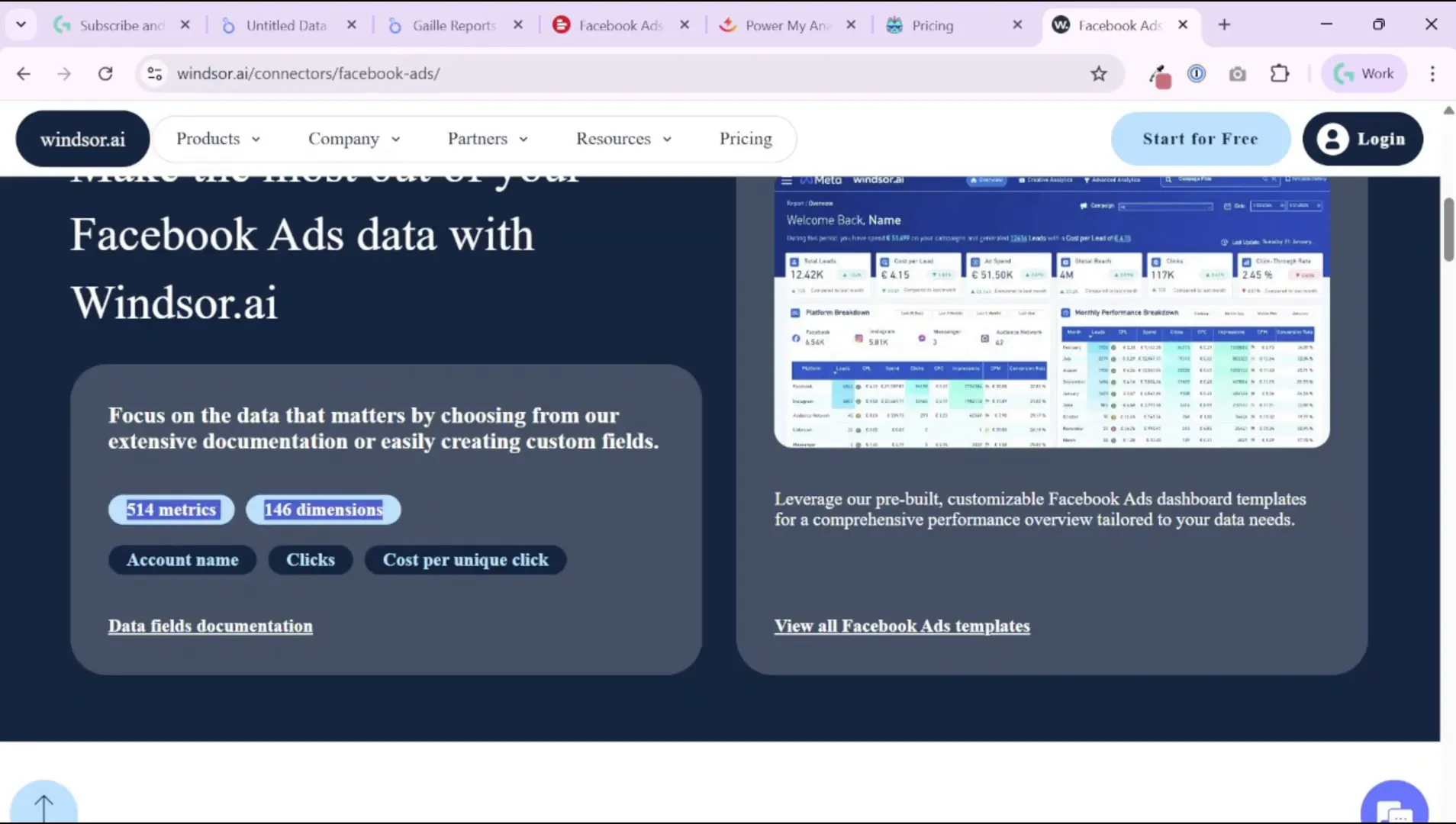
Some providers, like Supermetrics, have extremely broad coverage and polished documentation. Others, like Porter Metrics, cover the most popular ad platforms but may miss niche channels such as AdRoll. Windsor.ai has grown quickly and exposes a lot of fields and destinations, including BigQuery on smaller plans than some competitors. Smaller or newer connectors might look cheap, but they sometimes omit fields or break more often — which brings me to the next step.
Step 3: Count your accounts and evaluate pricing tiers — agencies must be deliberate
Connector pricing commonly depends on three variables: the number of data sources, the number of accounts per data source, and the destination types. If you run a single-company setup, one or two connector accounts may be enough. If you run an agency, you might manage dozens or hundreds of client accounts. Check this carefully.
Example pricing patterns I see frequently:
- Plans that include a limited number of accounts per data source (e.g., three accounts). Perfect for a small business, painful for agencies.
- Plans that charge per destination (Google Sheets, Looker Studio vs BigQuery) or lock BigQuery behind higher tiers.
- Free or very cheap plans that restrict data sources drastically or limit to one account.
Here’s a simple checklist I use when comparing price pages:
- How many accounts per data source are included?
- Which destinations are included at each plan level (Looker Studio, Google Sheets, BigQuery)?
- Is the plan billed per connector, per account, or per destination?
- Does the provider offer a free trial or “free forever” tier and what are its limitations?
For example, some budget connectors allow one source and one account for around $15/month — great for solo marketers. Supermetrics tends to be pricier, especially if you need BigQuery or many accounts, but it often justifies its price with stability and quality support. Windsor.ai is in the sweet spot for many: competitive pricing, many connectors for Looker Studio, and BigQuery destination on lower plans than some competitors.
Step 4: Choose your destination — Looker Studio vs Google Sheets vs BigQuery
Where do you want your data to land? This is critical. You have three common options:
- Connect directly to Looker Studio (fastest to get a dashboard online)
- Export to Google Sheets (good for manual checks and small datasets)
- Export to BigQuery (best for scale, transformation, and combining multiple sources)
If you’re building heavy, multi-source dashboards or working with large historical datasets, export to BigQuery and transform there before connecting Looker Studio to BigQuery. If you prefer a simple dashboard and low friction, connecting directly to Looker Studio is fine.
Note: BigQuery support is not universal and often appears on higher-priced plans. Supermetrics offers BigQuery but commonly restricts it to Pro or custom enterprise plans, which increases cost. Windsor.ai, by contrast, exposes BigQuery on some lower-tier plans — that’s one reason I like Windsor for clients who plan to scale into data warehouses.
Step 5: Audit metrics, dimensions, and documentation — make sure the connector for Looker Studio exposes the fields you need
All connectors will expose basic metrics such as clicks, impressions, cost, and standard breakdowns (campaign, ad set, ad). The challenge starts when you need specific or advanced fields: creative image URLs, ad labels, custom conversions, or raw-level fields for attribution modeling.
Always open the provider’s documentation for the exact platform you want to connect. Look for the “metrics and dimensions” list. Facebook Ads API is extensive — a single provider may expose hundreds of metrics and dozens or hundreds of dimensions. I recommend searching those documentation pages with Control+F for the exact fields you need (for example, “creative_image_url” for ad creative screenshots).
If you plan to show ad creative images in Looker Studio, verify that the connector exposes a creative image URL or thumbnail field. That single field unlocks a more visual dashboard that helps clients quickly recognize which creative performed best.
Here are practical things I check in the documentation:
- Is creative image or thumbnail exposed (creative_image_url, thumbnail_url)?
- Are ad labels or campaign tags available to filter on?
- Does the connector expose conversion-level or raw event data if needed?
- Are custom fields or custom metrics supported and how are they mapped?
Step 6: Test stability and support — connectors can break, so pick a provider that responds
Not all connectors are equally stable. Smaller providers or very new connectors may break during API changes from platform owners (Facebook, TikTok, etc.). I’ve had connectors suddenly return fewer fields after an API update or break a report’s labeling. For any connector you’re considering, ask yourself:
- Does the provider publish a changelog or status updates?
- How fast does their support respond? (I expect initial answers within 48 hours.)
- Does the provider maintain field labels and friendly names, or do they expose raw API names only?
Quality providers like Supermetrics and Windsor have robust support and more organized field labeling. Supermetrics often re-labels fields into friendly names that make building reports faster. Windsor tends to expose API names more directly but is improving quickly and offers great support and a rapid development cadence.
I prefer providers that pair solid documentation with active support. That saves hours of guessing when something stops working.
Step 7: Run a short pilot — try a small project before committing long-term
Never buy the most expensive plan before testing. Use free trials and pilot projects to validate three things:
- Can you connect the exact accounts you need (client accounts, manager accounts)?
- Are the fields you need present and accurate?
- Does the data refresh as often as you need and remain stable for a week or two?
During the pilot I recommend building a small Looker Studio template page with the exact charts, breakdowns, and creative rendering you want. If a connector doesn’t provide a creative image URL, build a mock and see how much value you lose. If BigQuery export is your goal, verify the export schema and run a sample SQL query to make sure you can join and transform the data as expected.
Step 8: Make the decision — balance cost, features, and support
After inventorying data sources, checking catalogs, counting accounts, testing destinations, auditing documentation, and piloting connectors, you’ll land on a shortlist. Here’s how I weigh the final decision:
- For single-account, low-budget projects: choose a reliable low-cost connector if they support your fields.
- For agencies managing many accounts: prioritize connectors that scale with accounts and offer agency pricing or white-glove support.
- For enterprise or data-driven teams: prioritize BigQuery destinations and connectors with rich raw-level fields.
- If visual creative tracking matters: ensure the connector exposes creative_image_url or similar so you can render creatives in Looker Studio.
Comparison table: Top 10 Facebook Ads Connectors for Looker Studio
| Connector | Starting Price | Destinations | Sources / Accounts | Field Coverage | Best For | Notes |
|---|---|---|---|---|---|---|
| Supermetrics | ~$39/mo | Looker Studio, Sheets, BigQuery | Tier-based | Broad + clean labels | Agencies, enterprises | High stability, polished UI |
| Windsor.ai | ~$19/mo | Looker Studio, Sheets, BigQuery | Flexible | Broad, raw labels | Growing SMBs, analysts | Strong BigQuery export on low plans |
| Power My Analytics | ~$14.95/mo | Looker Studio, Sheets, Excel | Low / mid | Medium | Solo users, freelancers | Budget option, less robust support |
| Porter Metrics | ~$15/mo | Looker Studio | Low | Limited | Freelancers | Simple setup, fewer integrations |
| Funnel.io | Custom / Enterprise | Looker Studio, Warehouses | Unlimited | Very broad | Large companies | Expensive but powerful |
| Dataddo | ~$99/mo | Looker Studio, Sheets, BigQuery | Tier-based | Broad | Mid-size teams | No-code interface, flexible sources |
| Improvado | Custom / Enterprise | Warehouses, BI tools | Unlimited | Enterprise-grade | Corporates, cross-channel | High cost, strong support |
| Adverity | Custom / Enterprise | Warehouses, BI tools | Unlimited | Enterprise-grade | Enterprises | ETL + governance built-in |
| Metricool | ~$22/mo | Looker Studio (basic) | Few accounts | Limited | Solopreneurs | Mostly social analytics tool |
| Coupler.io | ~$24/mo | Looker Studio, Sheets, BigQuery | Flexible | Medium | Data teams | Good for Google Sheets workflows |
Personally, I use two providers often:
- Supermetrics — my go-to when budget allows. It’s polished, well-documented, renames fields into readable labels, and has fast support.
- Windsor.ai — my favorite recent pick for projects that need BigQuery without the enterprise price tag. They grow quickly, support many connectors, and their documentation is improving. Use promo code “gaillereports” for a 10% discount.
When to pick cheaper connectors for Looker Studio
If your dashboard needs stick to basic clicks, impressions, cost, CTR, and campaign-level breakdowns, any connector will usually suffice. You don’t need to pay enterprise prices for simple dashboards. Cheaper connectors will handle those metrics reliably.
However, if you need advanced metrics, creative-level data, or BigQuery export, plan to pay more or choose a provider that targets those capabilities specifically.
Final checklist before you commit to a connector to Looker Studio
- Do they support every platform on my data inventory?
- Does their pricing allow the number of accounts I need?
- Is BigQuery available if I need it?
- Does the documentation expose the specific fields I need (creative images, custom conversions)?
- Is their support responsive and do they maintain stable connectors to Looker Studio?
- Can I run a short pilot to validate everything before paying annually?
Further reading and resources
If you want deeper tutorials and related walkthroughs from my blog, check these resources (I use these often when teaching clients and building dashboards):
- 3 Ways to Connect Facebook Ads to Looker Studio (2025 Guide + Free Template) — find the article and template.
- Send Ad Data to BigQuery with Supermetrics – Easy Setup — details and step-by-step guide
- How to Use SQL with GA4 in BigQuery: 10 Real Examples for Marketers — practical SQL examples
- How to Automate GA4 Reports in BigQuery with Scheduled Queries — automation tips
Closing thoughts
Connectors are a crowded space — I call it a “zoo” because the options vary wildly in price, coverage, and stability. My practical advice: list your needs, test early, and prioritize the fields and destinations that unlock real business value. If you want help testing providers for a specific client or account mix, reach out through the contact options on my site and I’ll share the exact setup I use for similar projects.
Remember to grab the free Facebook Ads Looker Studio template and try a connector trial to validate data fields and refresh behavior.
Good luck — and if you enjoyed my video walkthrough, don’t forget to watch it and follow along with the live demos. See you on the next guide!
Tool I use for Looker Studio connectors
If you’re building dashboards in Looker Studio and need data from ad platforms, this is something I personally use quite often.
Windsor.ai connectors for Looker Studio let you pull marketing data directly into your reports so everything updates automatically.
If you decide to try it, they also offer a 10% discount with the promo code gaillereports.
Tool I use for marketing dashboards
A tool I’ve used many times for marketing dashboards is Supermetrics.
It helps pull data from different marketing platforms into tools like Google Sheets, BigQuery, or Looker Studio so your reports can update automatically.

