
How to Calculate Running Totals in BigQuery (GA4)

I love turning raw GA4 data in BigQuery into actionable metrics, and one of the most useful techniques I rely on is a cumulative sum (also called a running total). In this article I’ll walk you step-by-step through a practical example using a small GA4-derived table: how to calculate cumulative users (or revenue), how the SQL works, and how you can adapt the same pattern to compute customer lifetime value (CLV) or first-N-days metrics (for example, the first 90 days after sign-up).
If you prefer the video walkthrough, watch the tutorial here:
Step 1: Inspect the dataset and define the use case
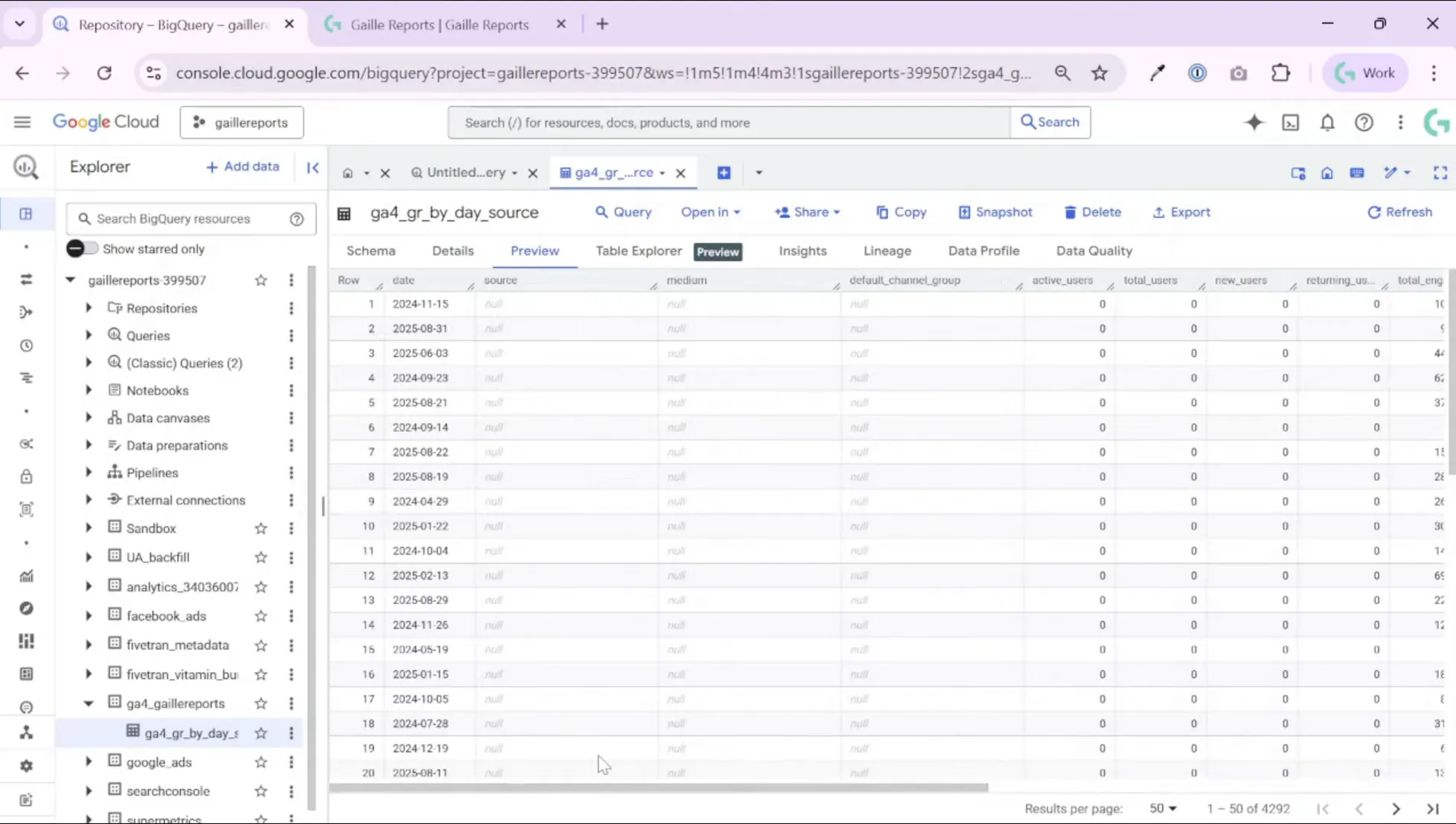
Start by understanding the table you’ll query. In my example, I rebuilt a smaller GA4 table in BigQuery using a scheduled query so it’s easier to demo. The table contains at least these columns:
- date (event or session date)
- source_medium (or source + medium combined)
- total_users (or a metric like purchase_amount / revenue)
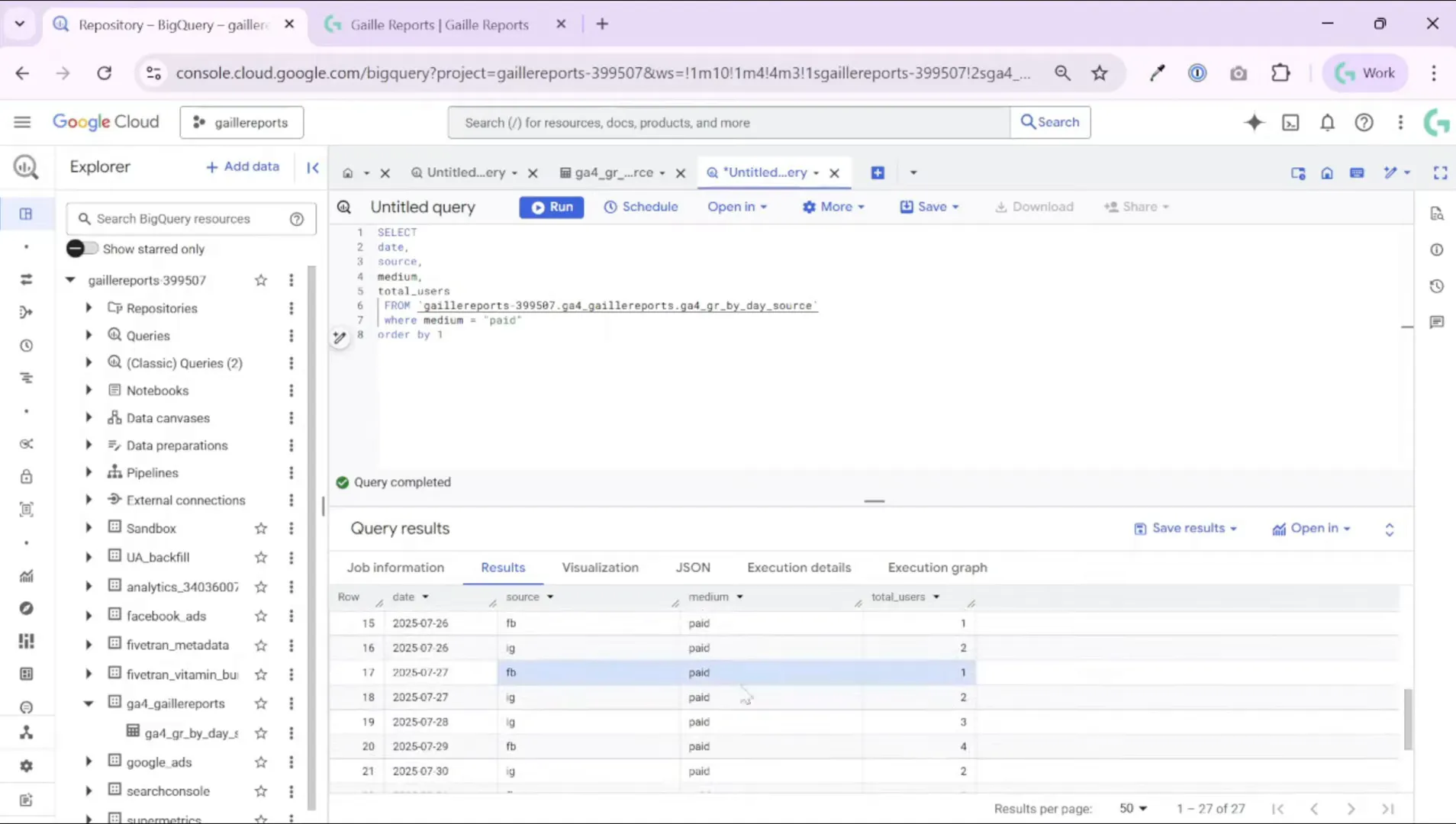
I filtered the dataset to one campaign type — medium = ‘paid’ — so we only look at paid traffic. The preview shows daily rows with date, source/medium, and users. That’s all we need to produce a cumulative sum by day and by source.
Step 2: Write the basic cumulative SQL query
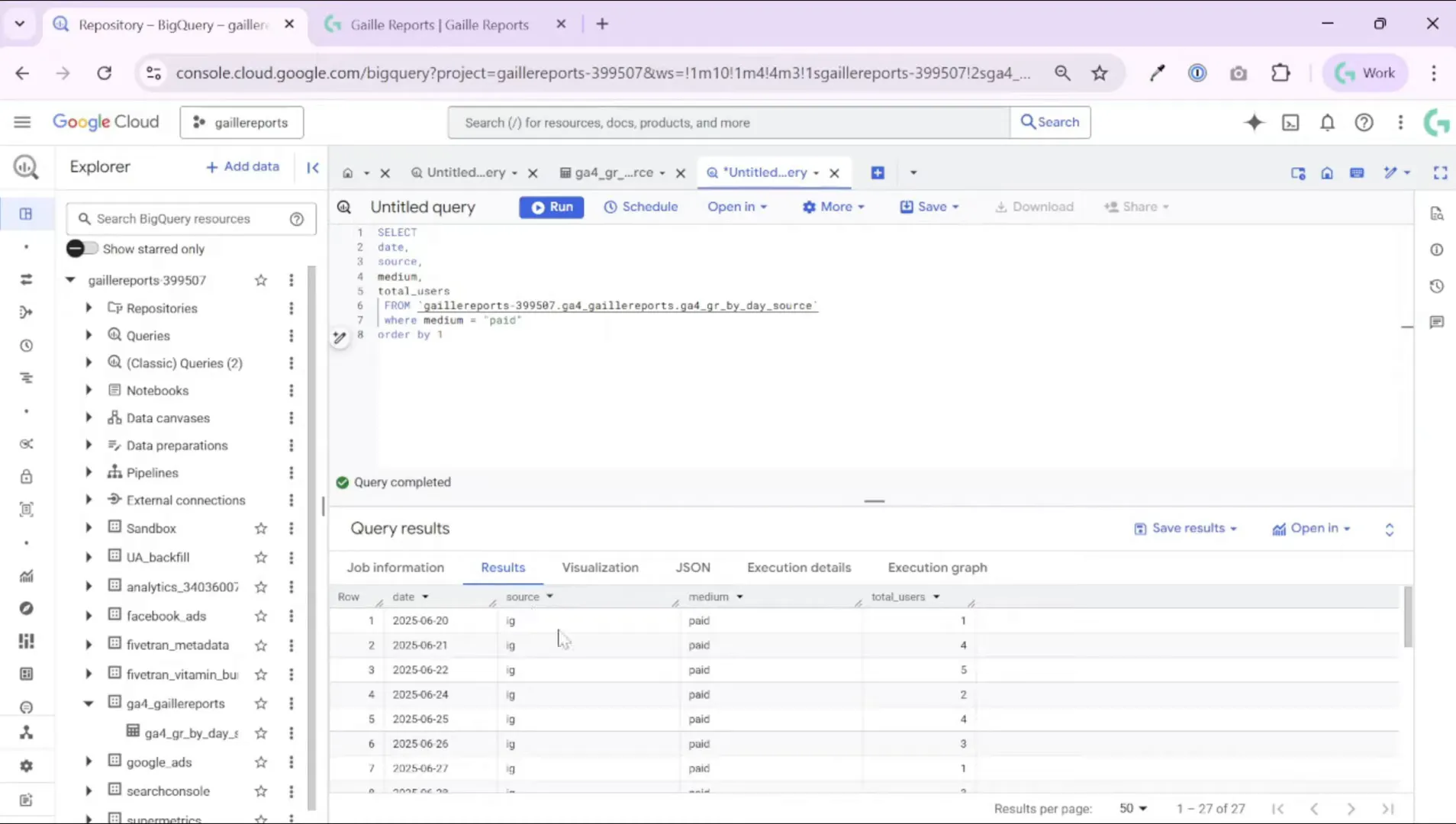
The core idea is to use a window function with SUM(…) OVER(…) so BigQuery calculates a running total for each partition. Here is a compact example you can adapt (replace project.dataset.table with your table):
Example SQL (cumulative users by source and day)
SELECT
date,
source_medium,
total_users,
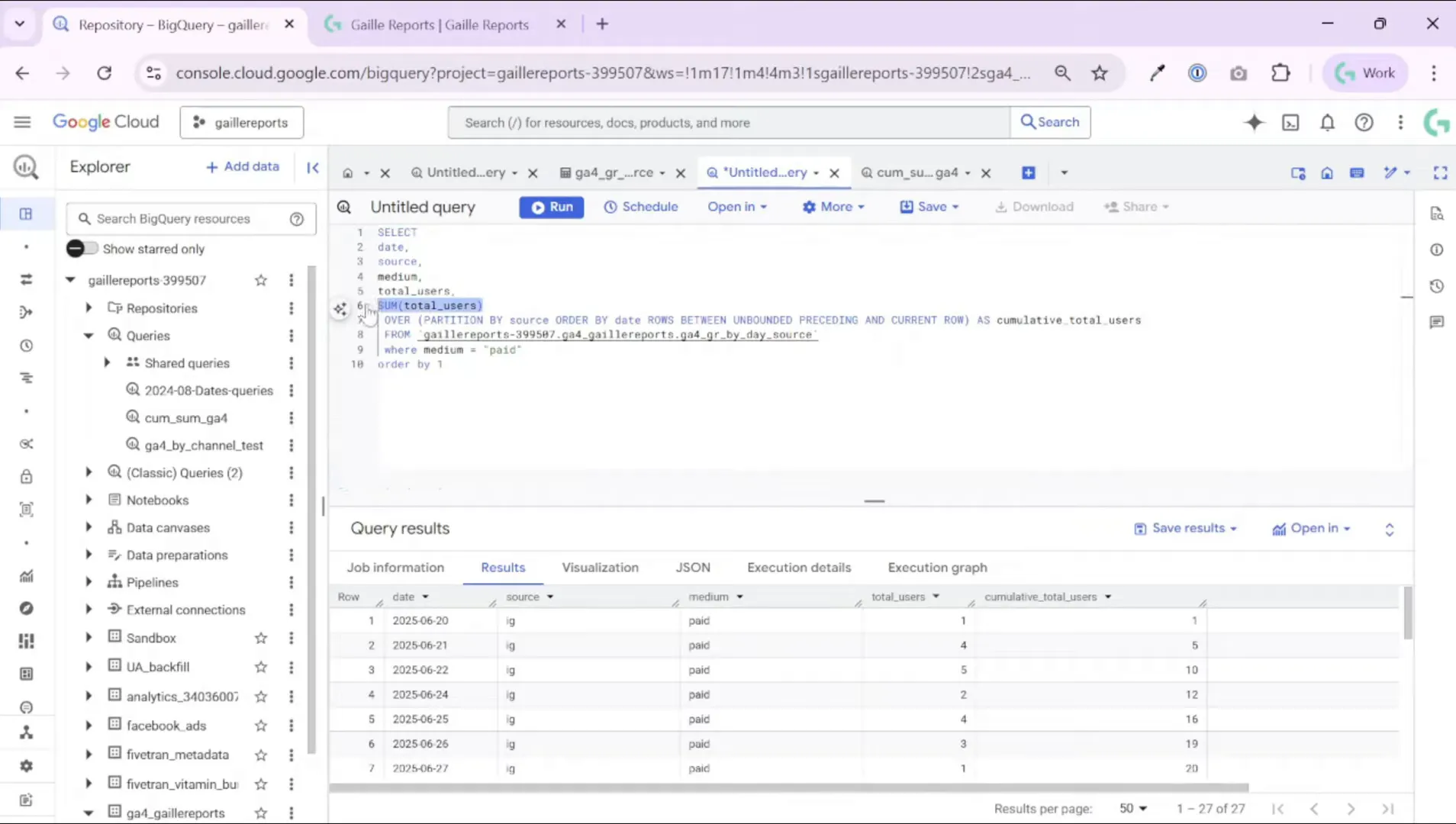
SUM(total_users) OVER (PARTITION BY source_medium ORDER BY date ROWS BETWEEN UNBOUNDED PRECEDING AND CURRENT ROW) AS cumulative_users
FROM `project.dataset.table`
WHERE medium = 'paid'
ORDER BY source_medium, date;
Key parts explained:
- SUM(total_users): the metric you want to accumulate. If you track revenue, replace total_users with revenue or purchase_amount.
- OVER (PARTITION BY source_medium …): partitioning ensures we compute separate running totals for Instagram and Facebook (or any other dimension). Without partitioning, you’d mix all sources together.
- ORDER BY date: the running total accumulates in chronological order.
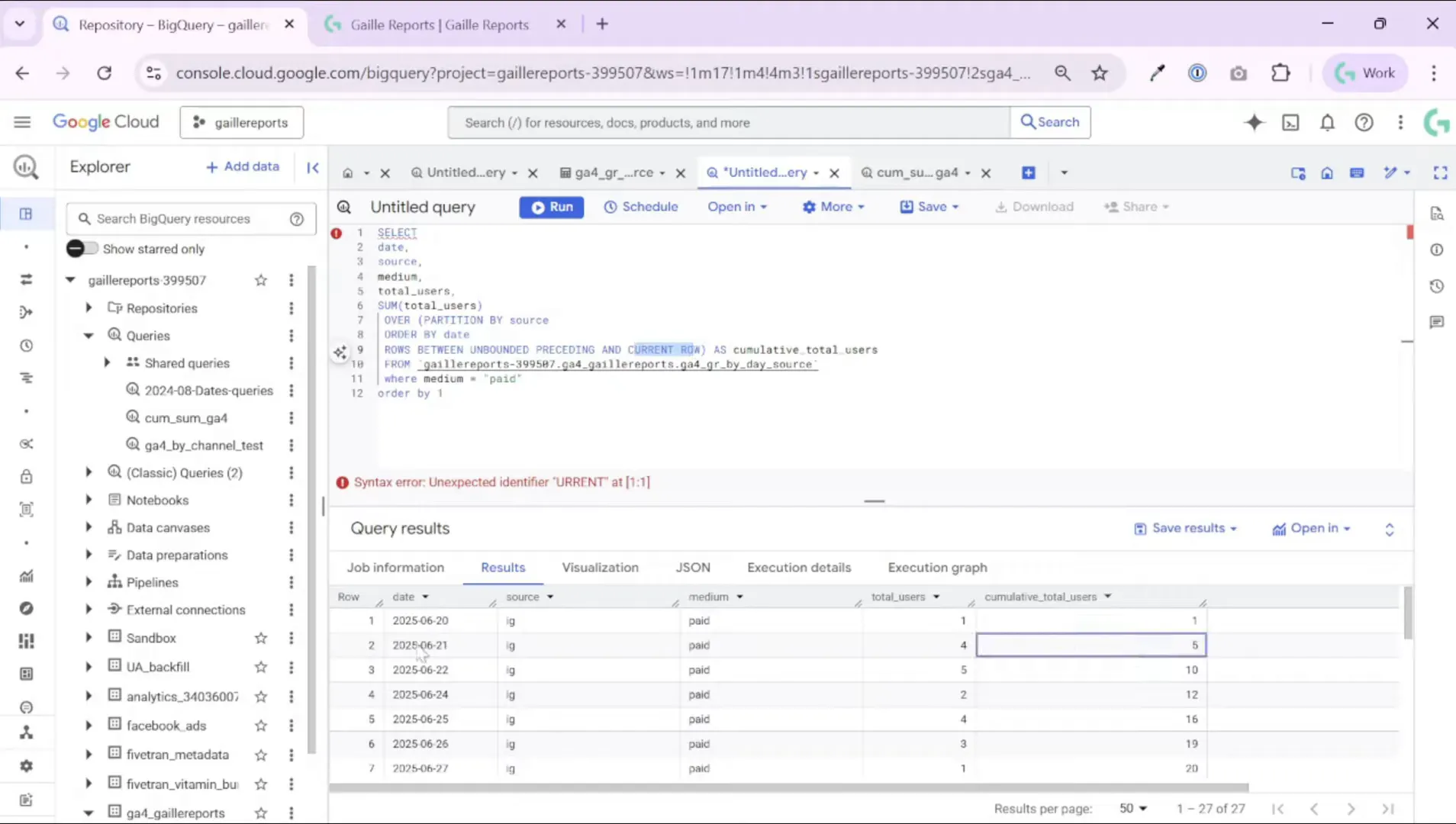
- ROWS BETWEEN UNBOUNDED PRECEDING AND CURRENT ROW: the frame tells BigQuery to start at the first row and run up to the current row (the classic cumulative/running behavior).
Step 3: Run and read the results — how to interpret cumulative numbers
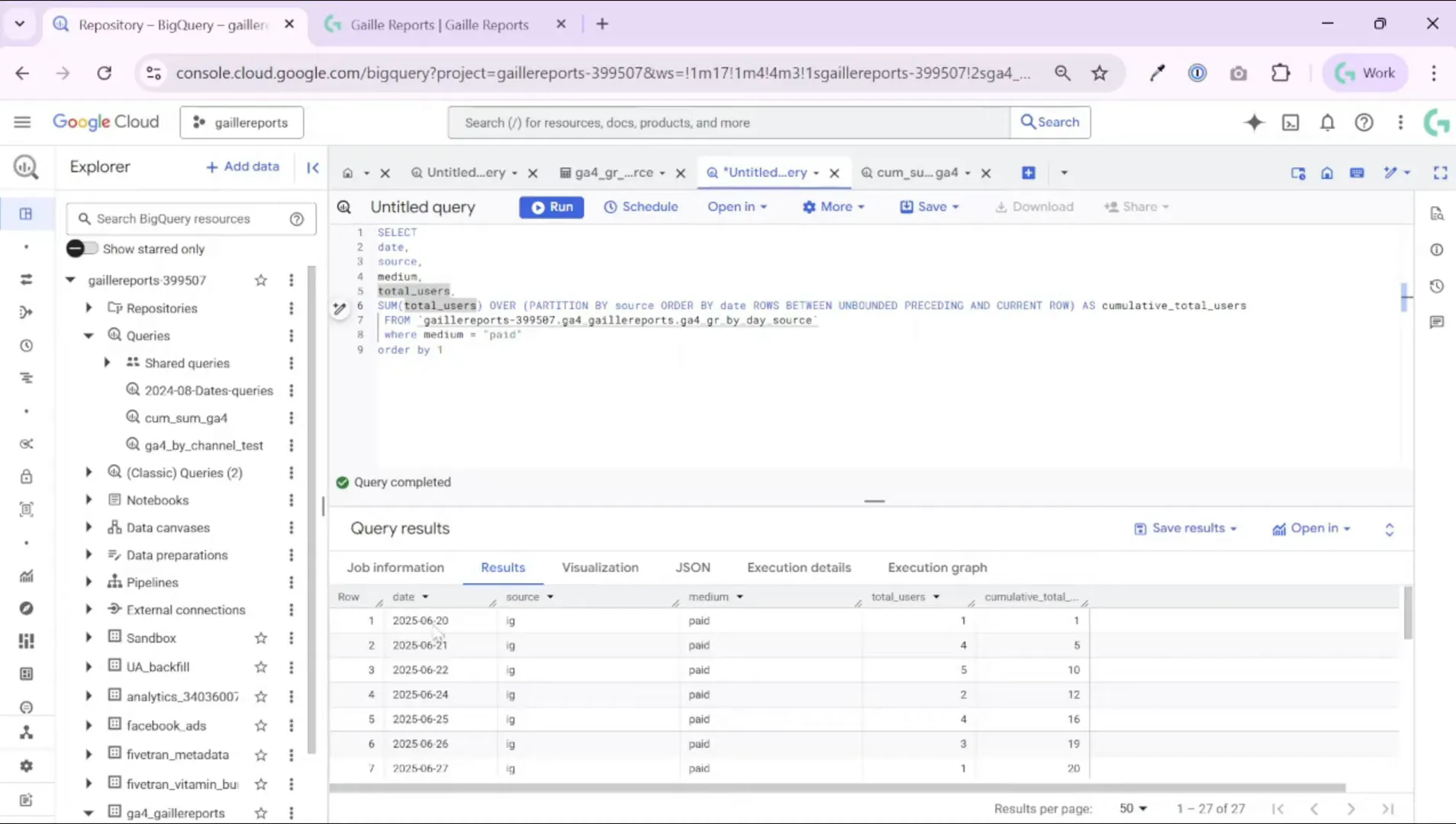
After you run the query, you’ll see that the cumulative column grows day by day for each partition. For example:
- 20 June: users = 1, cumulative_users = 1
- 21 June: users = 4, cumulative_users = 5 (1 + 4)
- 22 June: users = 5, cumulative_users = 10 (previous 5 + 5)
This pattern helps answer business questions such as “how many users did this campaign accumulate up to this date?” or “how much revenue did this channel generate within the first N days?”
Step 4: Turn cumulative sums into CLV (cumulative revenue per user)
A very common and powerful adaptation is to calculate cumulative revenue per user to approximate customer lifetime value (CLV) over time. To do this, you typically partition by user_id instead of source, and order by event_date. That way the cumulative value represents how much each customer has spent up to each day.
Here’s a practical pattern:
SQL to compute cumulative revenue per user
WITH base AS (
SELECT user_id, event_date, revenue
FROM `project.dataset.events_table`
WHERE revenue IS NOT NULL
),
cum AS (
SELECT
user_id,
event_date,
revenue,
SUM(revenue) OVER (PARTITION BY user_id ORDER BY event_date ROWS BETWEEN UNBOUNDED PRECEDING AND CURRENT ROW) AS cumulative_revenue
FROM base
)
SELECT * FROM cum ORDER BY user_id, event_date;
That result gives you a timeline per user, showing how their cumulative spending grows. You can then aggregate across users to get cohort CLV (e.g., average cumulative revenue per user by cohort day).
Step 5: Limit to first N days after signup (e.g., 90-day CLV)
Often, you want cumulative metrics for a fixed window after the user’s first event (for example, the first 90 days after sign-up). You can compute the user’s first_date with a window MIN(), then filter rows where the date difference stays within your window.
SQL: cumulative revenue for first 90 days per user
WITH base AS (
SELECT
user_id,
event_date,
revenue,
MIN(event_date) OVER (PARTITION BY user_id) AS first_date
FROM `project.dataset.events_table`
),
filtered AS (
SELECT *,
SUM(revenue) OVER (PARTITION BY user_id ORDER BY event_date ROWS BETWEEN UNBOUNDED PRECEDING AND CURRENT ROW) AS cumulative_revenue
FROM base
WHERE DATE_DIFF(event_date, first_date, DAY) <= 90
)
SELECT * FROM filtered ORDER BY user_id, event_date;
This returns only the events where the user is within their first 90 days, and the cumulative_revenue reflects totals up to each date inside that window. You can then calculate per-user totals at day 90 or average them to produce cohort CLV.
Step 6: Practical tips & performance considerations
Window functions are powerful, but you should watch out for query cost and performance on very large tables. Here are practical tips I use:
- Filter early: push WHERE clauses (e.g., medium = ‘paid’, date ranges) into a subquery to reduce row counts before window computations.
- Limit columns: select only the columns you need (user_id, date, revenue) to reduce processed bytes.
- Use scheduled queries to pre-aggregate or rebuild lightweight tables that contain daily metrics. I often rebuild a small table (one row per date + metric) and use that for dashboards — it saves repeated heavy processing.
- Partition and cluster your BigQuery table by date and by the most-used dimensions (user_id, source_medium). This helps cost and performance when filtering and ordering.
- When dealing with millions of users, consider computing per-user cumulative totals offline (scheduled job) and storing results in a summary table to serve dashboards quickly.
Step 7: Common variations you’ll want to try
- Partition by campaign or creative_id to see campaign-level accumulations.
- Compute cumulative counts of conversions, not only users or revenue.
- Create cohort views: use the user’s acquisition date as a cohort and compute cumulative revenue per cohort day.
- Combine window functions with ROW_NUMBER() or RANK() to pick the first N occurrences per user (for example, first purchase event).
Quick checklist before you run the query
- Have you limited the date range?
- Did you filter out irrelevant mediums/sources early?
- Is the partition dimension chosen correctly (user_id vs source)?
- Are you ordering by the correct date column?
- Do you want to persist results to a table via a scheduled query?
Final thoughts (summary)
Window functions in BigQuery let you write concise SQL to compute running totals and cumulative metrics. In practice, I use this approach for:
- Daily cumulative users or conversions per channel
- Per-user cumulative revenue to estimate CLV
- First-N-days cohort analysis (for example, 90-day revenue)
Remember to partition by the right dimension (source or user), order by date, and use the frame ROWS BETWEEN UNBOUNDED PRECEDING AND CURRENT ROW for a classic running total. For large datasets, pre-aggregate with scheduled queries and use table partitioning/clustering to control cost and speed.
If you want to follow up with the practical steps I used to prepare the GA4 table in BigQuery (scheduled queries and rebuilding a compact table), check those resources and examples on the blog.
Recommended reading on the blog
For more guides and related examples, I recommend these articles on Gaille Reports:
- How to Automate GA4 Reports in BigQuery with Scheduled Queries
- BigQuery GA4 Users Sessions Tutorial: How to Identify Your Top Traffic Sources
- How to Use SQL with GA4 in BigQuery: 10 Real Examples for Marketers
- Send Ad Data to BigQuery with Supermetrics – Easy Setup
These posts walk through scheduled queries, GA4 table design, and real SQL examples you can adapt to compute cumulative metrics and CLV.
If you found this walkthrough useful, please subscribe to my newsletter for more Looker Studio and BigQuery tips. I publish templates, practical tutorials, and real-world examples that save time when you build dashboards and analytics pipelines.
Pro tip: If you need to pull data into BigQuery from different platforms, you don’t have to build everything from scratch. You can use API connectors that handle the heavy lifting for you.
For example, Windsor.ai connects Facebook Ads, Google Ads, LinkedIn, and many more directly to BigQuery.
Use my promo code gaillereports to get 10% off any Windsor.ai plan.
Tool I use for Looker Studio connectors
If you’re building dashboards in Looker Studio and need data from ad platforms, this is something I personally use quite often.
Windsor.ai connectors for Looker Studio let you pull marketing data directly into your reports so everything updates automatically.
If you decide to try it, they also offer a 10% discount with the promo code gaillereports.
Tool I use for marketing dashboards
A tool I’ve used many times for marketing dashboards is Supermetrics.
It helps pull data from different marketing platforms into tools like Google Sheets, BigQuery, or Looker Studio so your reports can update automatically.

