
How to Calculate GA4 Sessions in BigQuery: A Simple Step-by-Step Guide

If you’ve been working with Google Analytics 4 (GA4) data exported to BigQuery, you might have noticed that GA4 doesn’t provide a direct session count column in its raw export tables. This can make tracking sessions a bit tricky when building custom reports or debugging traffic issues. But don’t worry—calculating sessions in BigQuery using GA4 data is easier than you think. In fact, with just one line of SQL code, you can accurately calculate the daily session count for your website or app.
In this article, I’ll walk you through a straightforward method to extract session counts from GA4 data in BigQuery. Whether you want to create clean, day-by-day session reports for Looker Studio or simply understand how sessions are structured in GA4’s raw data, this tutorial is for you.
If you prefer a video walkthrough, feel free to watch my full tutorial here: GA4 Sessions BigQuery Video Tutorial. Now, let’s dive into the details!

Step 1: Understand How GA4 Stores Sessions in BigQuery
Unlike Universal Analytics, GA4 stores data in an event-based model. Every interaction on your site or app is logged as an event, and these events are exported into BigQuery tables. However, there’s no dedicated “session” column in the raw export.
Instead, each event contains a session ID stored inside the event_params nested field. This session ID, combined with the user ID, uniquely identifies a session. So, to calculate sessions, we need to extract the session ID from the event parameters and group it with the user ID to define unique sessions.

Step 2: Extract Session ID and Combine with User ID
To identify unique sessions, you need to extract the session ID from the event_params array and combine it with the user_pseudo_id or user_id. By concatenating these two, you create a unique session identifier.
The key here is to use a subquery to pull the integer value of the session ID from the event parameters where the key (key or k) equals ga_session_id. Then, you concatenate this session ID with the user ID to build a unique session string.
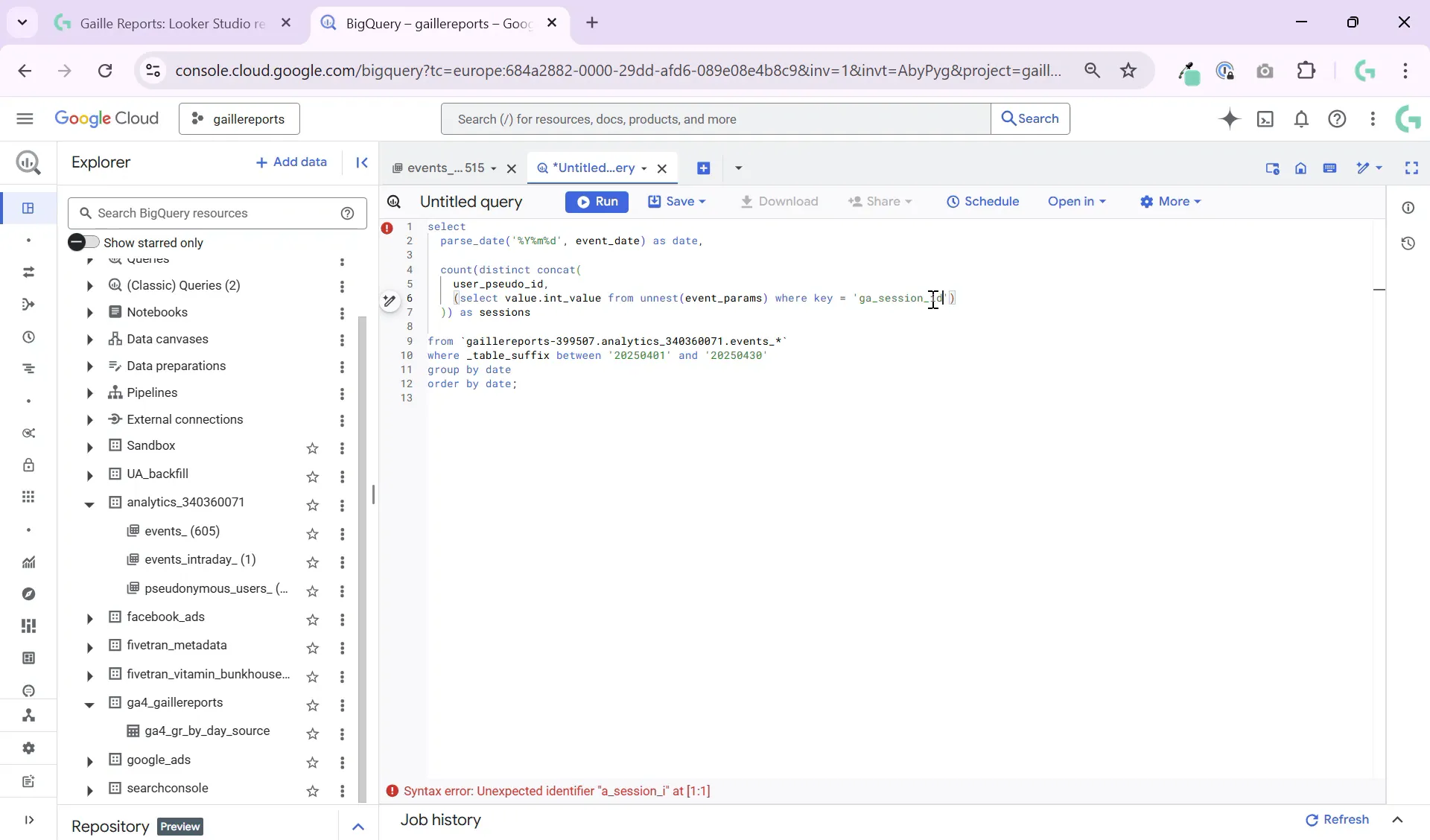
Step 3: Write the SQL Query to Count Sessions by Day
Here’s the core of the solution—an SQL query that calculates sessions per day using GA4 data in BigQuery. The query first parses the event date (usually stored as a string) into a proper DATE format. Then, it extracts the session ID and user ID, concatenates them to form a unique session identifier, and finally counts distinct sessions per day.
The SQL looks like this:
SELECT
  PARSE_DATE('%Y%m%d', event_date) AS date,
  COUNT(DISTINCT CONCAT(user_pseudo_id, CAST((SELECT ep.value.int_value FROM UNNEST(event_params) ep WHERE ep.key = 'ga_session_id') AS STRING))) AS sessions
FROM
  `your_project.your_dataset.events_*`
GROUP BY
  date
ORDER BY
  date
Let’s break down what’s happening:
- PARSE_DATE(‘%Y%m%d’, event_date): Converts the event_date string into a proper date format.
- UNNEST(event_params): Flattens the nested event parameters to access individual keys and values.
- SELECT ep.value.int_value WHERE ep.key = ‘ga_session_id’: Extracts the session ID integer value from event parameters.
- CONCAT(user_pseudo_id, CAST(session_id AS STRING)): Combines user ID and session ID into a unique string representing one session.
- COUNT(DISTINCT …): Counts unique sessions per day.

Step 4: Run the Query and Use the Results
Once you run this query in BigQuery, you’ll get a clean, daily count of sessions derived from your GA4 raw event data. This output is perfect for feeding into Looker Studio reports, analyzing traffic trends, or debugging sudden session drops.
You can also embed this query as part of a larger script to aggregate sessions alongside other metrics or dimensions, depending on your reporting needs.

Additional Tips for Working with GA4 Sessions in BigQuery
- Use stable table suffixes: If your GA4 export tables use date-sharded tables (e.g., events_20230501), consider using wildcard suffixes like
events_*to query multiple days at once. - Understand your user ID setup: Depending on your GA4 configuration, use
user_idif you have authenticated users, oruser_pseudo_idif not. The latter is GA4’s anonymous identifier. - Check event parameters carefully: Session ID is stored as an integer in event parameters. Make sure to cast it correctly in your SQL.
- Filter by event types if needed: Sometimes you might want to count sessions only for specific events like
session_start. Adjust your WHERE clause accordingly.
Summary
Calculating ga4 sessions bigquery directly from raw GA4 data is straightforward once you know where to look. By extracting the session ID from event parameters and combining it with the user ID, you can uniquely identify sessions and count them per day with a simple SQL query.
This method gives you clean, reliable session counts that you can use for accurate reporting in Looker Studio or deeper analysis in BigQuery. It’s a powerful technique that helps bridge the gap between GA4’s event-based data model and traditional session metrics.
For more tutorials on marketing analytics and working with BigQuery, check out these helpful articles:
- How to Connect BigQuery to Looker Studio – Beginner Friendly Tutorial
- Google Sheets to BigQuery Made Easy – No Coding Required
- BigQuery Date Function: Find the First and the Last Day of Month
If you found this guide helpful, consider subscribing to my blog for more practical tips on GA4, BigQuery, Looker Studio, and marketing analytics. Feel free to leave a comment if you want more short tutorials like this one!
